Gallery Cloud ServicesBeginner
Resolve Gallery 'Image Not Found' Issues
Steps to diagnose and resolve 'Image Not Found' problems when loading PhotoSentinel Gallery images on restricted networks.
2 minutes readUpdated November 19, 2024
Users on some networks may experience problems loading images on the PhotoSentinel Galleries. Follow the recommendations below to identify the cause, and suggested actions.
- Log in to the Control Hub at https://setup.photosentinel.com.au.
- Select an installation from the Search field at the top of the page.
- Click on the 'Gallery' link under the installation's name in the left-side menu bar.
- Obtain a direct link to one of the images by clicking on the Social Sharing icon (see the image below).
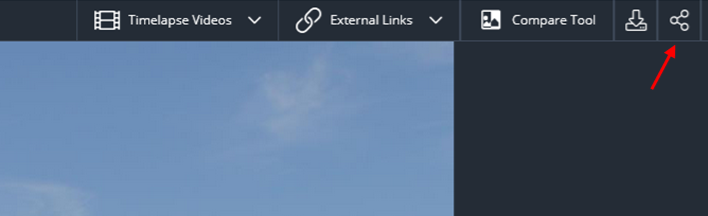
- Paste the Social Sharing link into your browser and load it. This should navigate to the individual image.
- Make a note of the error that appears, as this should provide useful information in determining the cause of the problem. This could be something such as 'Address blocked by Vendor Firewall' or 'Address not allowed by Proxy'.
- Contact your IT department with the address and resulting error details, so that they can assist with removing the block, or resolving the routing issues for that network.
Please note that the direct image links are only valid for a short time, so a new link may need to be provided if too much time has elapsed.