Using the Gallery
View, filter, compare, and share a feed's photos in the Buildcam Gallery — Timeline and Grid views, Livestream, Livelapse, and downloads.
Using the Gallery
The Gallery is where you review the photos a feed has captured. It puts the image front and centre — clean enough to show a client, while giving you the tools to filter, compare, and share what you find.
Opening the Gallery
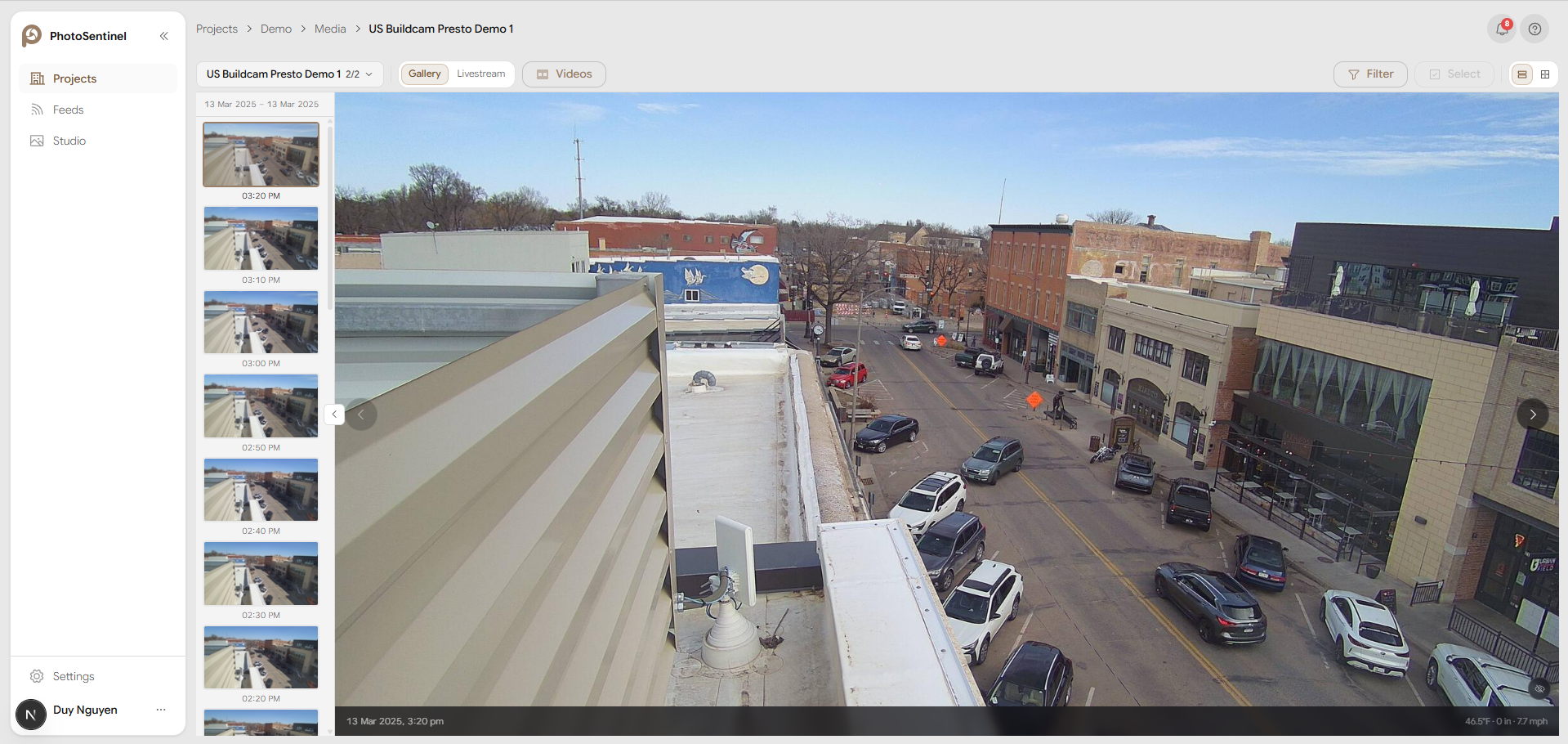
- Open Projects and select a project.
- On the Media tab, select the feed you want to view.
The Gallery opens for that feed. The breadcrumb shows your location — Projects → [project] → Media → [feed] — and you can return to the project at any time from there.
Gallery and Livestream
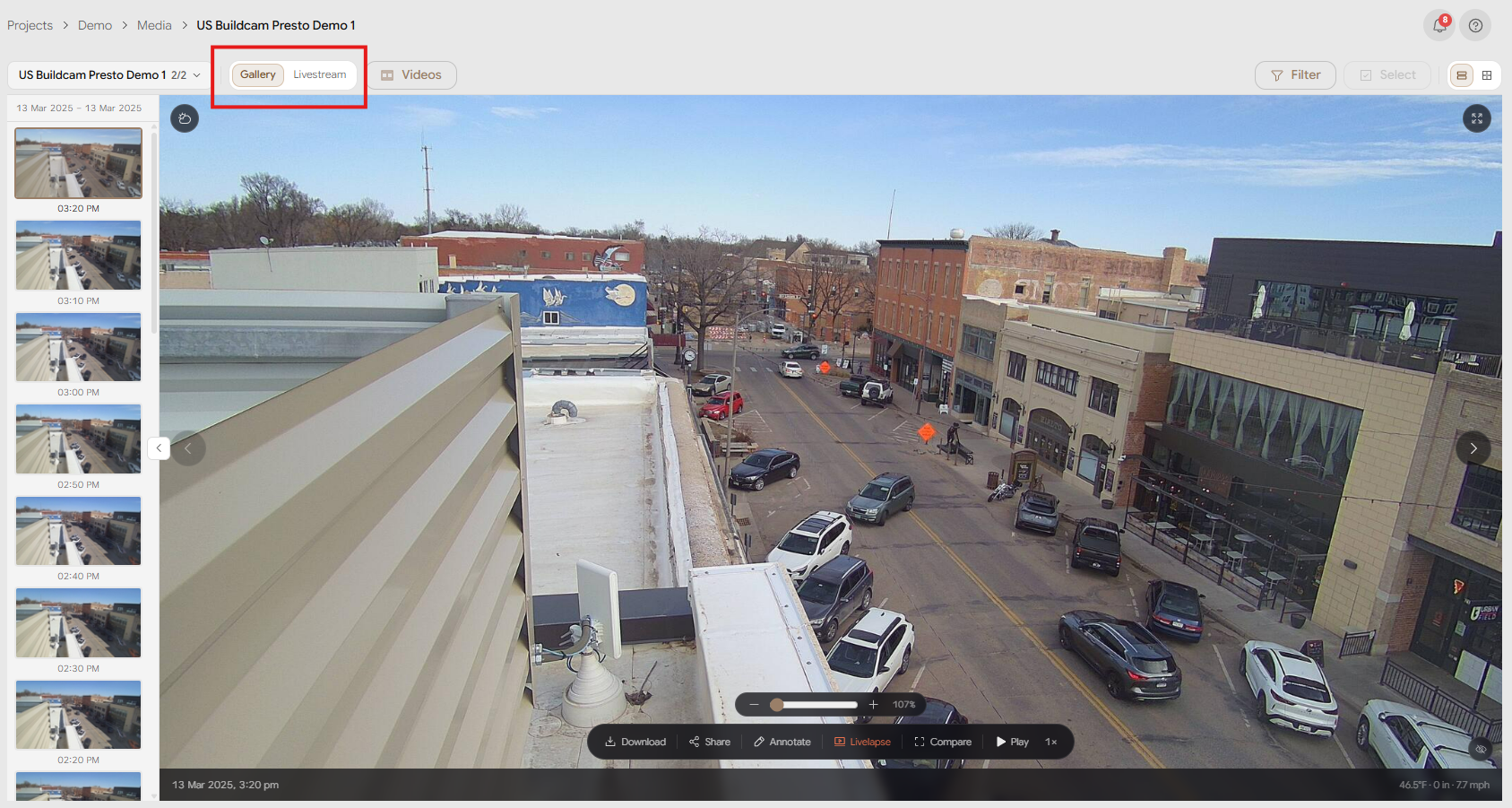
At the top-left of the Gallery toolbar, a Gallery / Livestream switch toggles between two modes:
- Gallery — the captured photos for this feed (the default).
- Livestream — a live view from the feed, where the feed supports streaming. If a feed has no live stream available, this mode is empty.
Timeline and Grid views
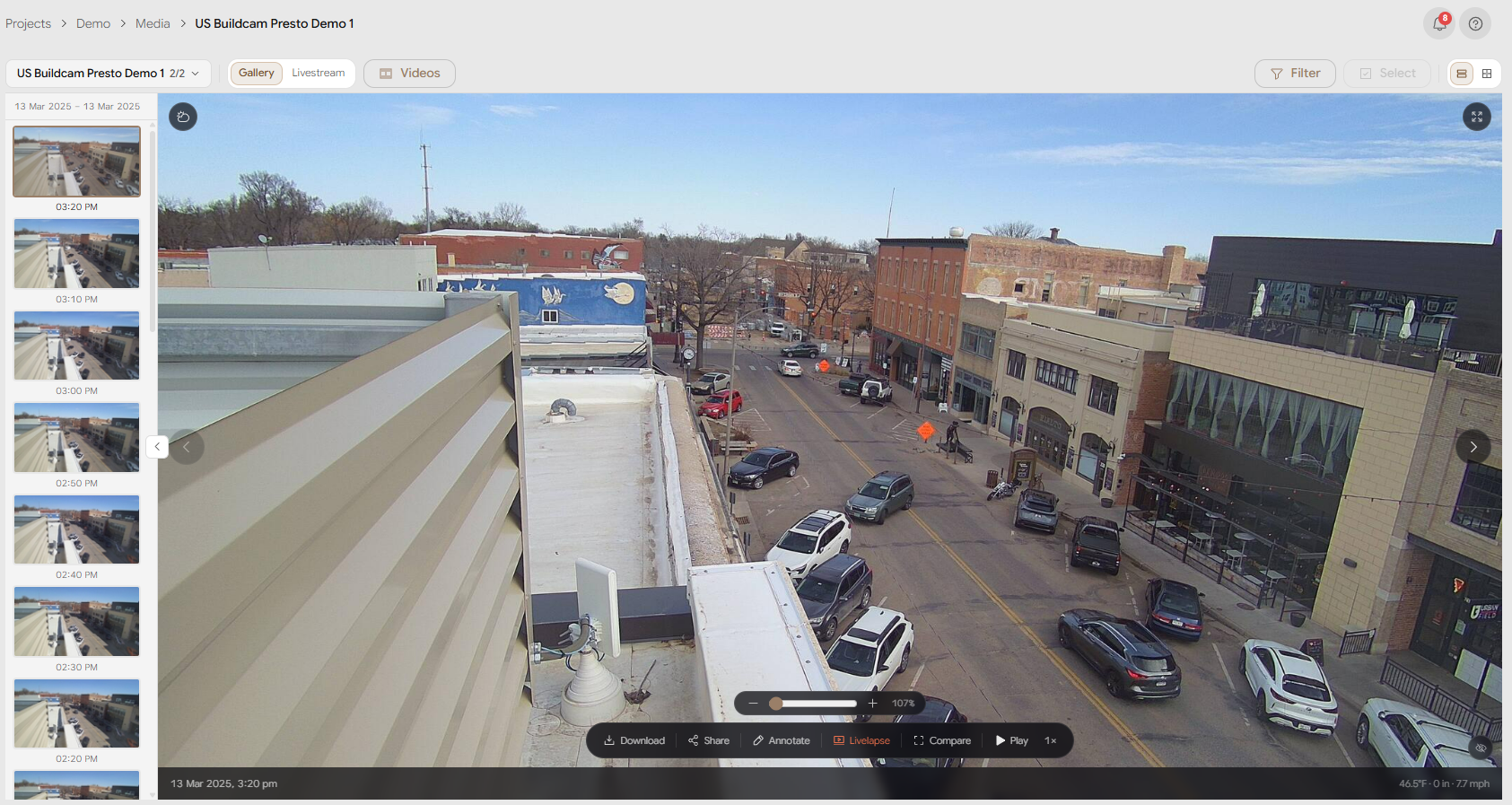
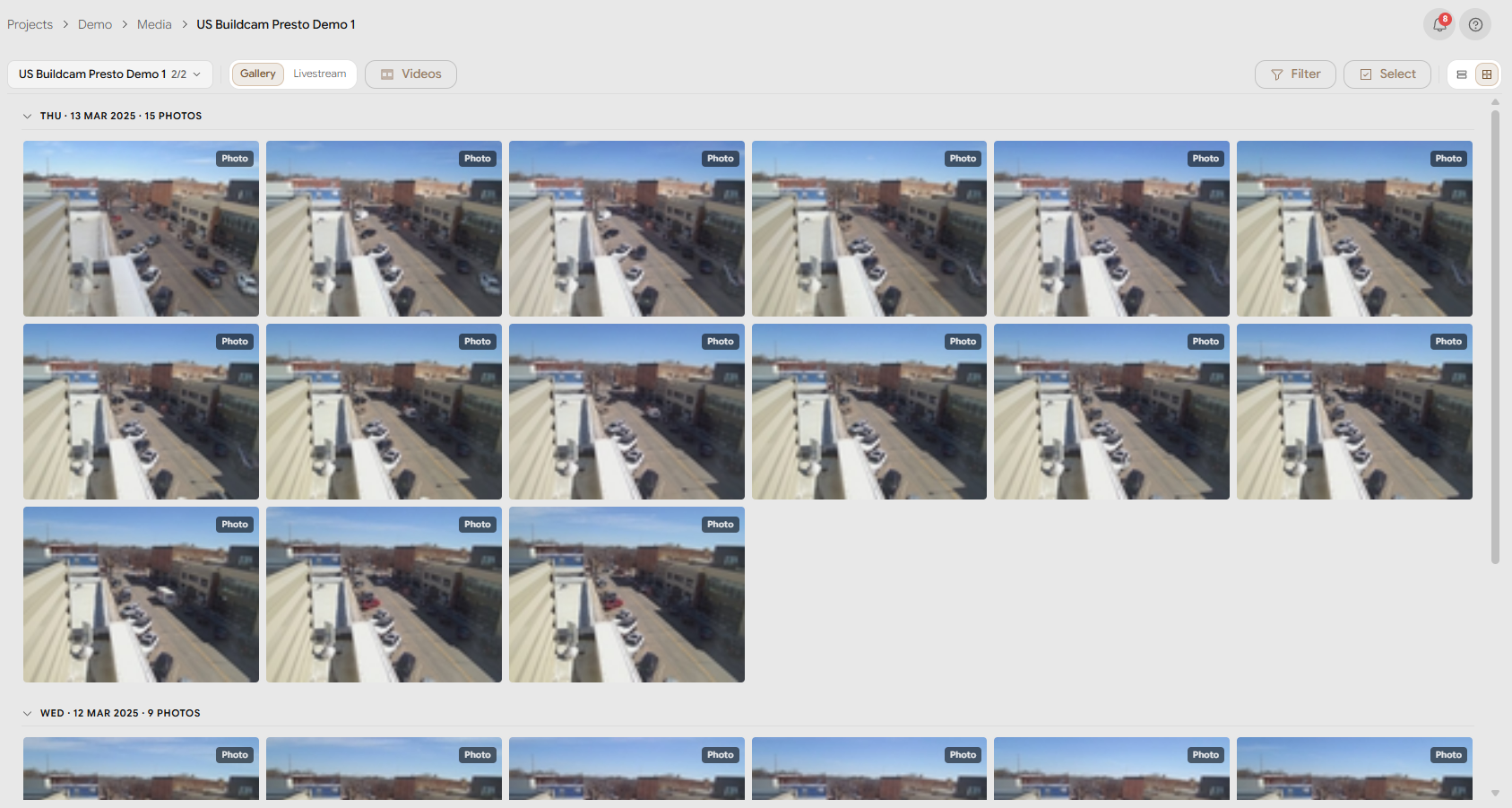
Within Gallery mode, the view toggle on the right of the toolbar switches between two layouts:
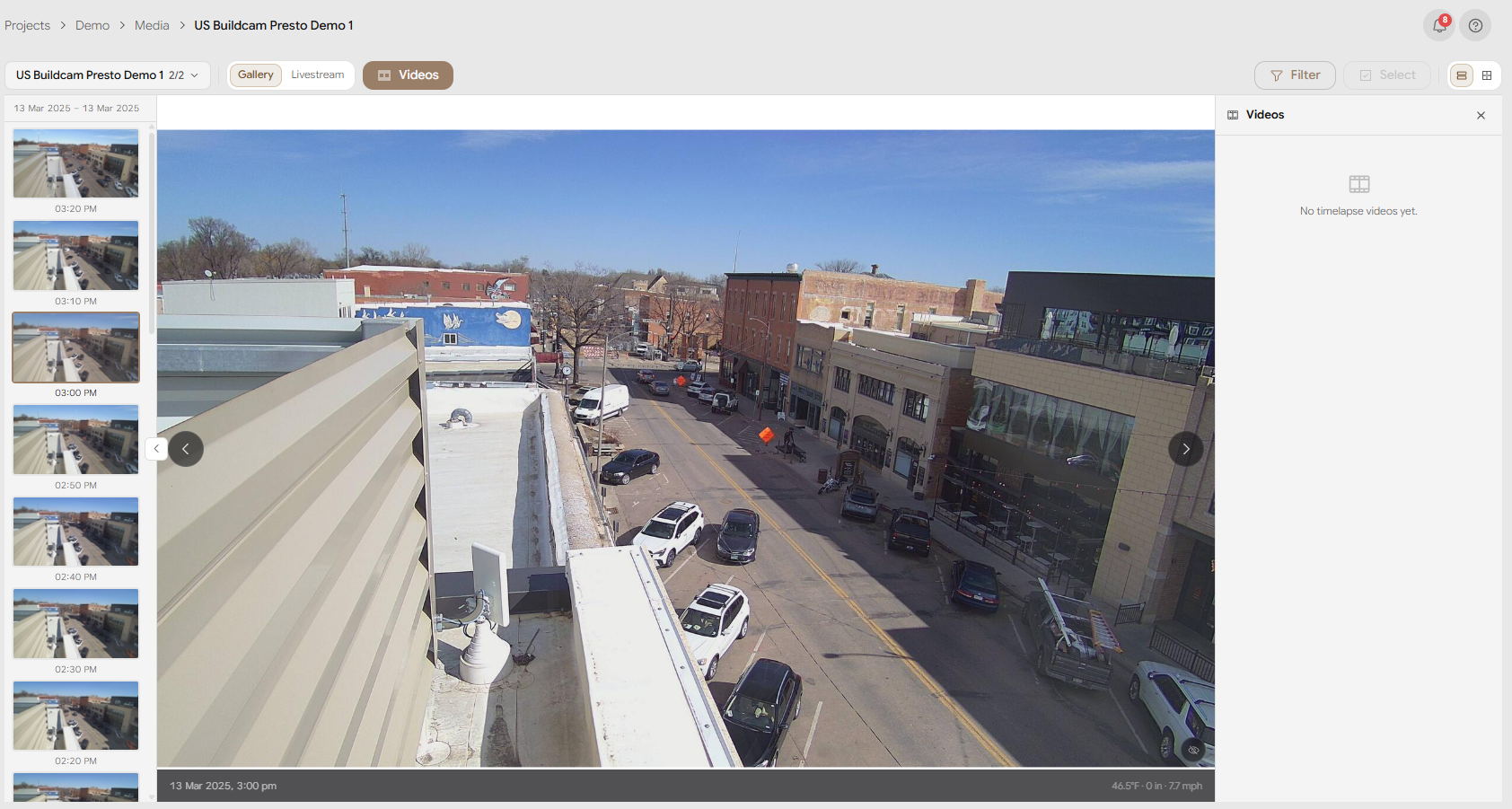
- Timeline — shows one photo at a time at full size, with controls to step forward and back through the feed's history. Best for reviewing progress photo by photo.
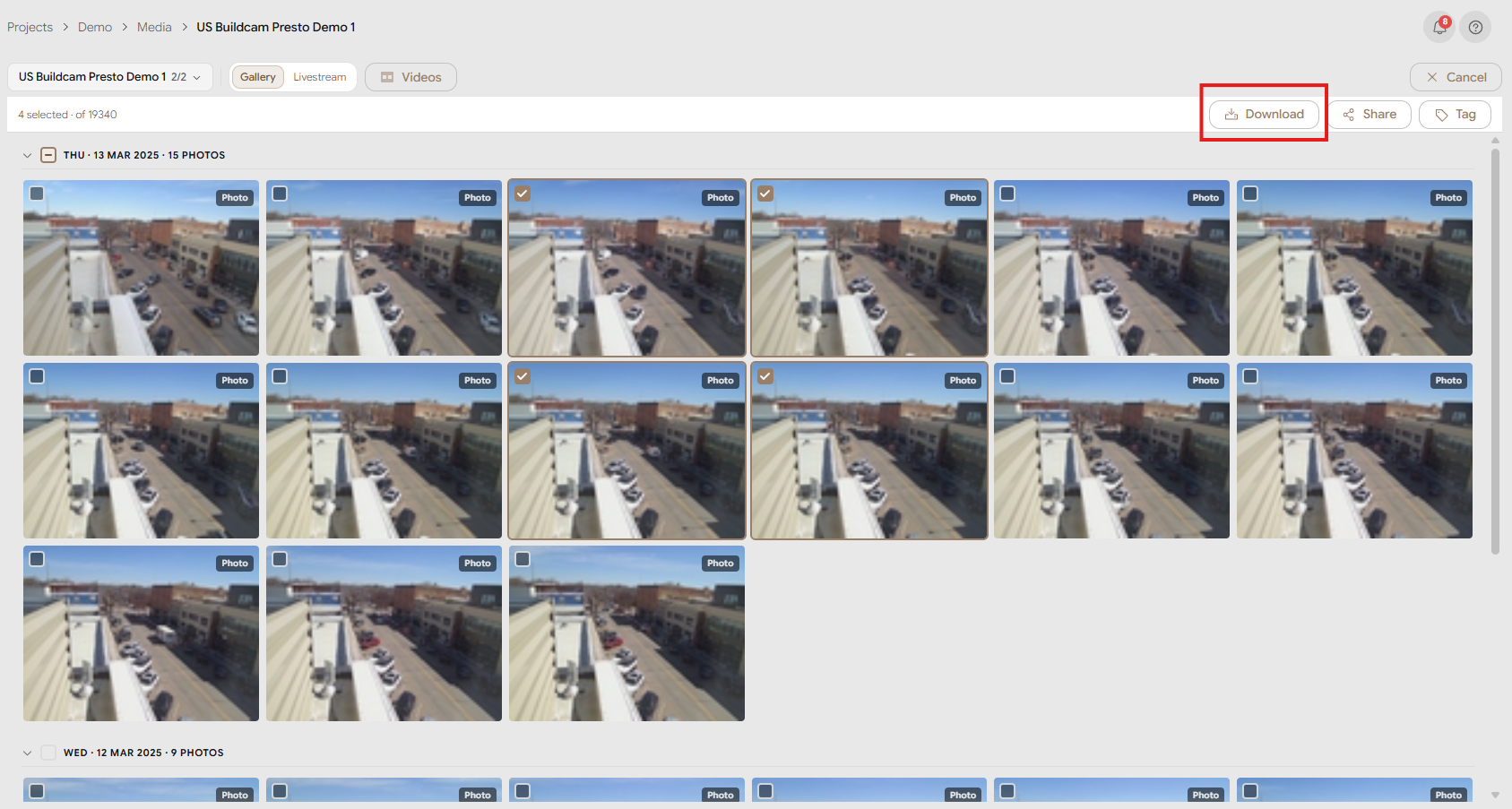
- Grid — shows photos as a scrolling grid of thumbnails that loads more as you scroll. Best for scanning a lot of images quickly, and for selecting several photos at once.
Switching between feeds
You don't need to leave the Gallery to look at another feed on the same project. Use the feed switcher at the left of the toolbar to jump straight to another feed's Gallery.
Filtering photos
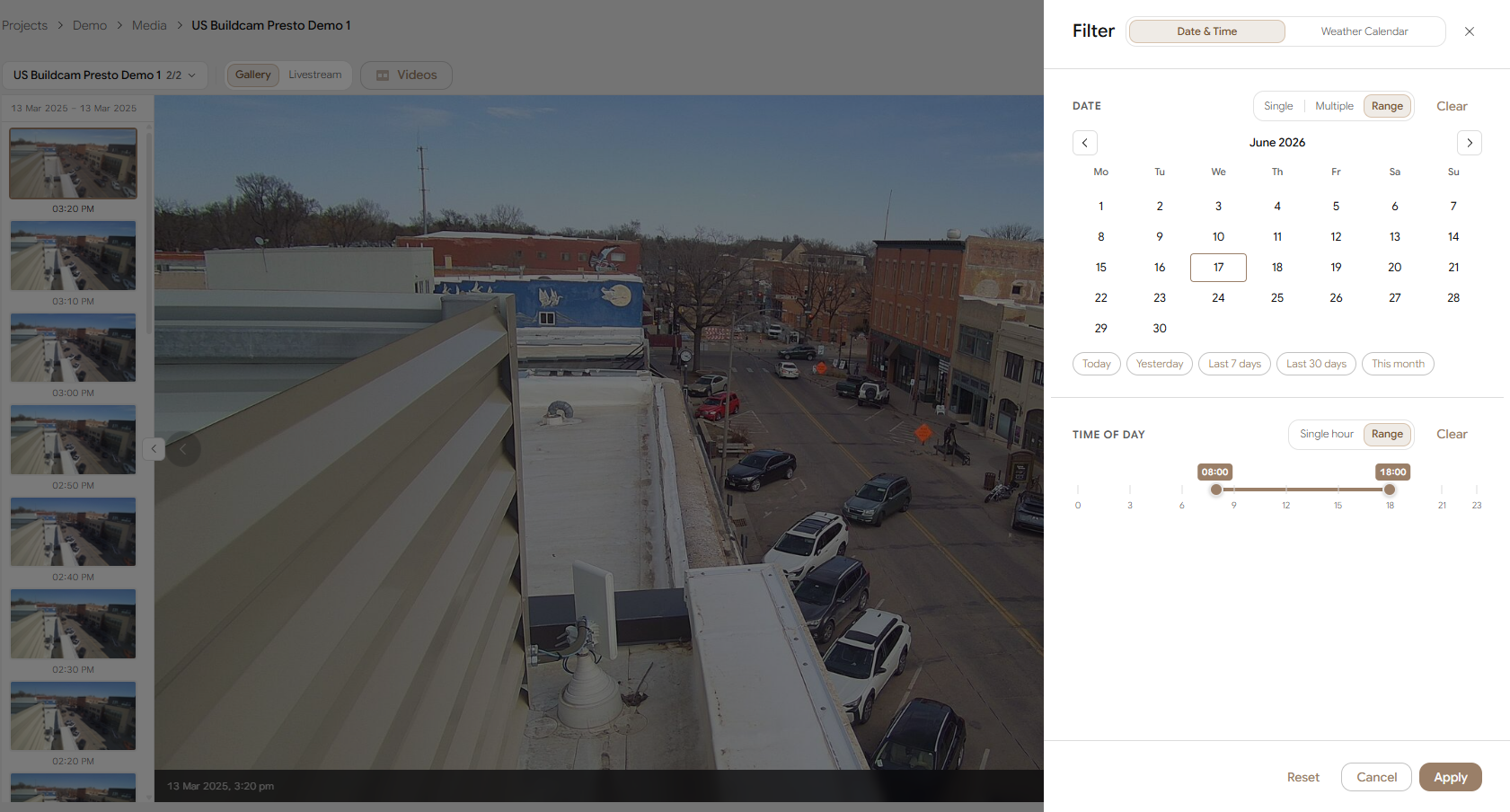
Select Filter in the toolbar to open the filter panel. A badge on the Filter button shows how many filters are currently active. The panel has two tabs:
- Date & Time — narrow the set to a single date, several dates, or a date range, and optionally to a time-of-day window (or a single hour). Combine these to get a precise set — for example, one photo around 2 pm on each day in March.
- Weather Calendar — pick days by their weather, so you can find (for example) only the clear days in a period.
Active filters appear as chips above the photos. Remove a chip to drop that filter, or clear them all at once.
Comparing two photos
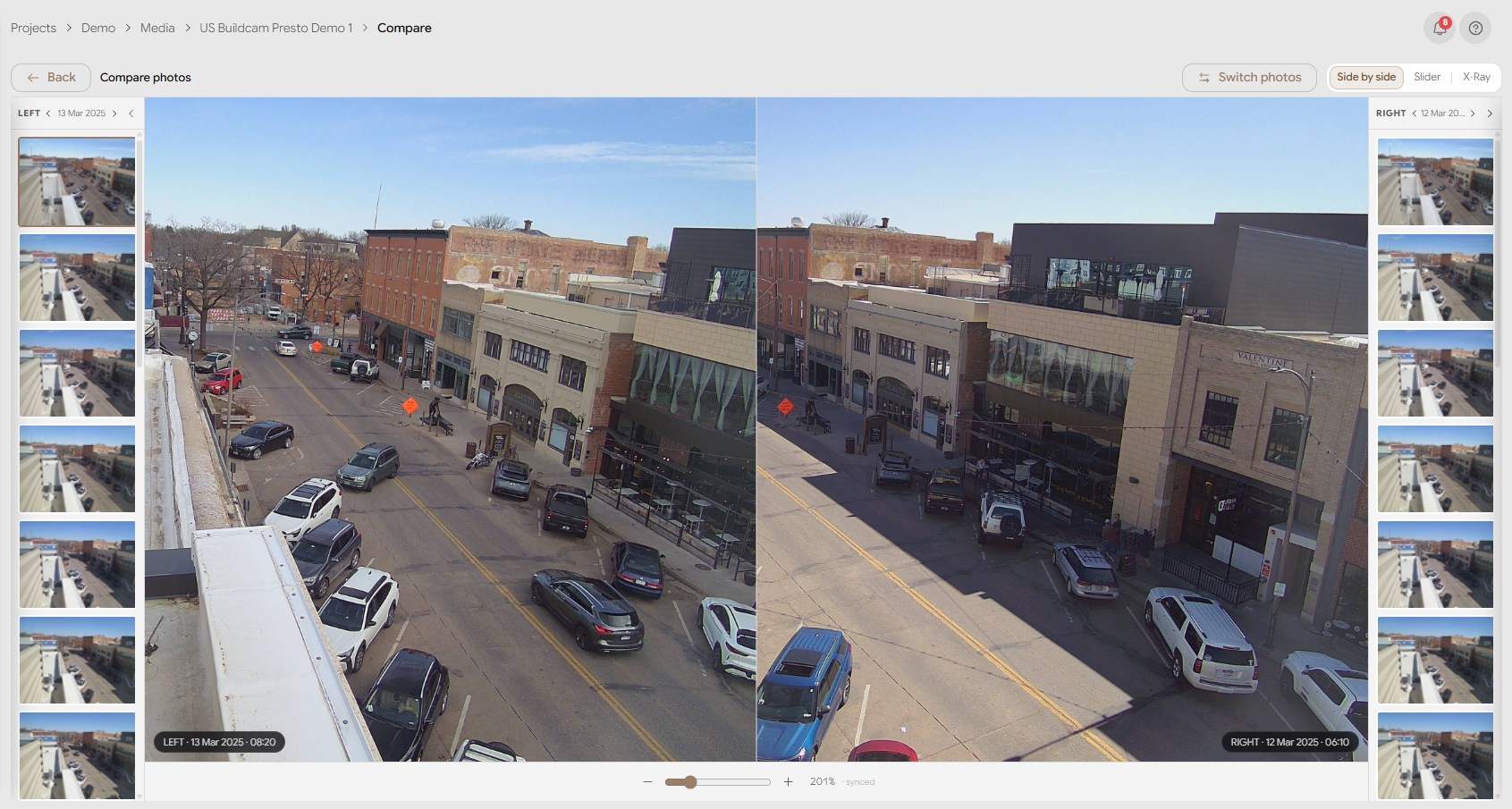
The Compare tool overlays one photo on another so you can show the change between two points in time — a powerful way to demonstrate progress on a site.
From Timeline view, choose Compare, then pick the two photos you want to compare. Drag the divider to reveal more or less of each image.
Livelapse
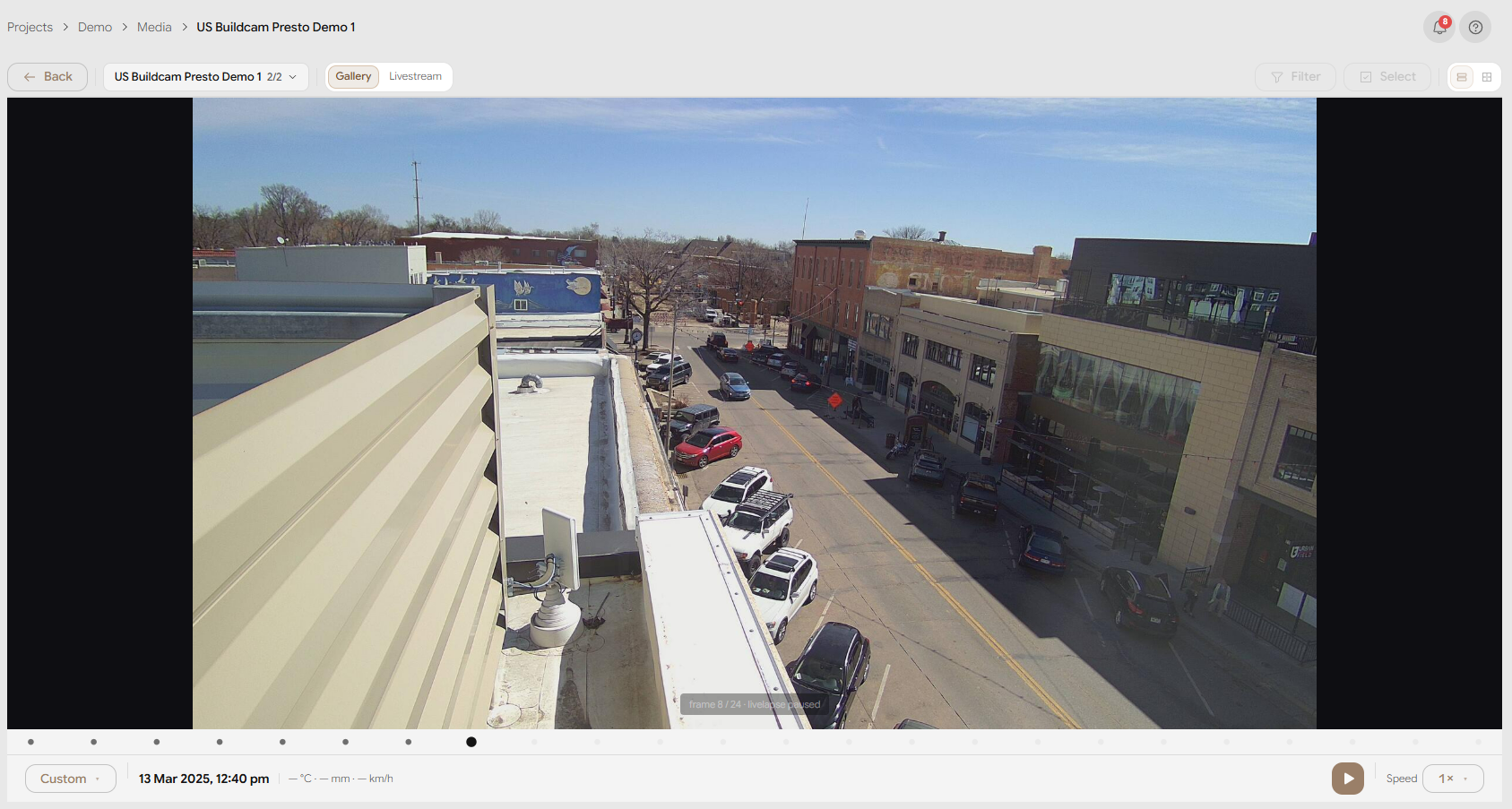
Livelapse builds a quick timelapse from a feed's recent photos so you can preview movement without leaving the Gallery. Open it from the Timeline view's Livelapse control.
Timelapse videos
Select Videos in the toolbar to open the panel of timelapse videos generated for this feed. Play a video in place from the panel.
Fullscreen
In Timeline view you can expand the current photo to fullscreen for a distraction-free look. Press Esc to exit fullscreen.
Downloading photos
- A single photo — download it directly from the photo's actions.
- Several photos — switch to Grid view, select Select, tick the photos you want, then choose Download. Multiple photos are packaged into a single
.zip.
Sharing
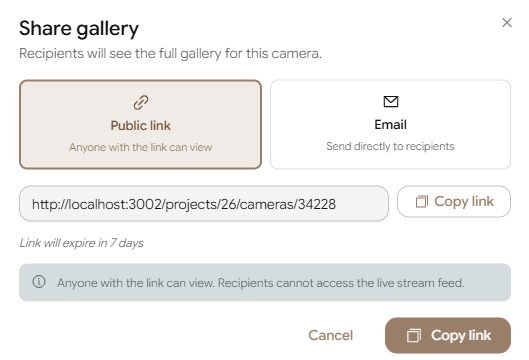
Select Share to open the share panel. You can copy a link to the gallery to send yourself, or send it by email straight from Buildcam.