Cloud Services Gallery Lifecycle
There are many phases in the lifecycle of a photoSentinel Cloud Services Gallery: Test, Capture, Review and Archive.\* This article will assist you in understanding each phase, and how to move between them.
Cloud Services Gallery Lifecycle
There are many phases in the lifecycle of a photoSentinel Cloud Services Gallery: Test, Capture, Review and Archive.* This article will assist you in understanding each phase, and how to move between them.
You can find information on archive and purge dates for the gallery on the Gallery Settings page.
* Please note that not all phases are available on all plans. Please check with your Account Manager if you would like to clarify the available options for your Cloud Services plans.
Test Phase
Upon creating a new gallery, retail Cloud Service plans include a Test phase, allowing for testing and installation ahead of project commencement. During Test phase, all functionality is available ensuring any photos uploaded or user access granted remains for the full lifecycle. The gallery automatically progresses to the Capture phase once Test phase ends.
For details on creating a new gallery, please see the ‘How to Create an Installation’ article on our Knowledge Base.
Capture Phase
When Capture phase begins, billing will begin. All functionality available in Test phase continues to be available.
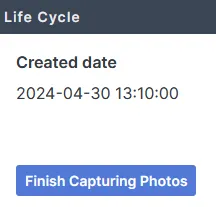
Upon project completion, progress the gallery to Review or Archive phase by using the Gallery Settings page and clicking on the ‘Finish Capturing Photos’ button in the Lifecycle section.
For more information on concluding a gallery, please review the ‘How to Conclude an Installation’ article on our Knowledge Base.
Review Phase
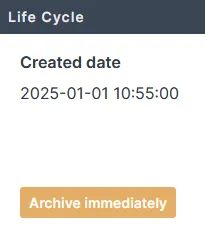
The Review Phase allows you to continue viewing photos on the gallery, forward images to alternate locations and generate time-lapse videos. Photo uploads are no longer available. After the set duration of the Review phase, galleries automatically move to the Archive phase. You can proactively move galleries to the Archive phase earlier than the scheduled time by clicking on the ‘Archive Immediately’ button on the Gallery Settings page.
Archive Phase
The Archive phase moves the gallery from the main dashboard to the archived galleries section. Photos are removed from the gallery and stored in an archive location for a selected period. While the gallery is in this archived state, you will not be able to see or access the photos on the gallery, nor will you be able to forward the photos or generate time lapse videos.
To obtain access to the photos again, restore the gallery using the following steps:
1. Navigate to the Dashboard, then activate the filter ‘Show archived galleries’.

This will show only those galleries which are in the archived state.
- Click on the desired gallery, taking you to the 'Gallery Settings' page.
- On the Gallery Settings page, click on the ‘Restore’ button.^
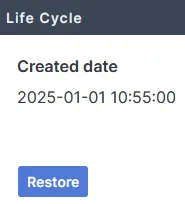
Please note that there may be a delay between the gallery entering archive and restore becoming available.
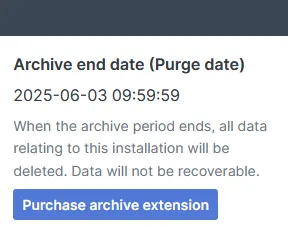
If you wish to extend the duration of the archive, you can do this either at the time of the ‘Finish Capturing Photos’ action, or afterwards on the Gallery Settings page, by clicking on the ‘Purchase archive extension’ button, then choosing the desired archive length.^
At Archive end date (Purge date), all gallery data will be permanently removed.
Gallery Best Practices
Please note that while it is possible to use a single gallery across multiple projects, we recommend creating new galleries for each project, for the following reasons:
- Creating a new gallery for each project provides a fresh gallery without previous photos to confuse customers and avoids security implications when assigning permissions across different projects
- Keeping the photos separate will allow time lapse generated videos to be consistent for a single project (ie. Avoiding different orientation, colour or lighting that can occur across different projects)
- A fresh gallery can reduce data storage charges as unnecessary photos are removed from the gallery
For details on creating a new gallery, please see the ‘How to Create an Installation’ article on our Knowledge Base.
^ To purchase extended Archive or Restore, the Organisation-wide ‘Billing’ permission, and gallery ‘Configure’ Access are required.