Alerts System
How equipment alerts work in Buildcam — where they appear, what the severities mean, and how to choose which notifications you receive.
Alerts System
This is a general article on how alerts work in Buildcam. To resolve a specific alert, see the list of alert articles here. To set up an alert for AC power disconnection, see this article.
When a feed behaves unexpectedly or may need attention, Buildcam raises an alert. Alerts surface in two places:
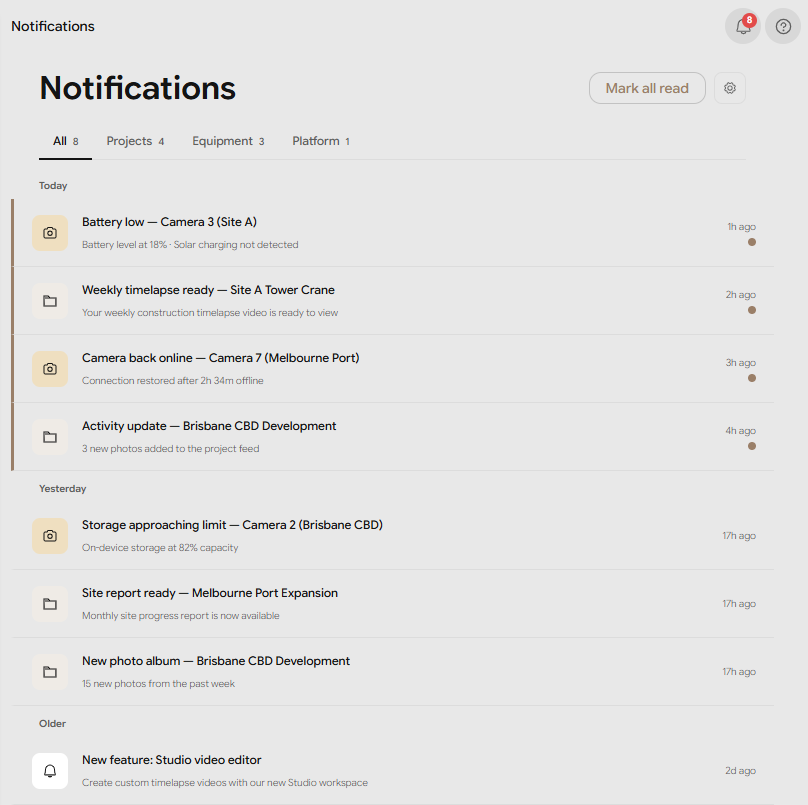
- Notifications — the bell icon in the top navigation opens your Notifications inbox. Equipment alerts appear under the Equipment filter.
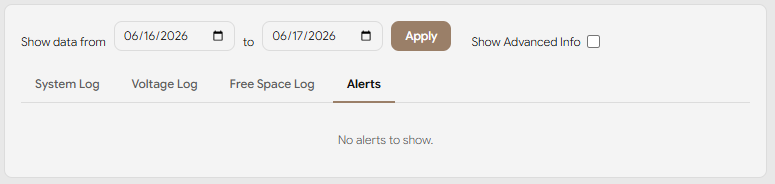
- The feed's Diagnostics tab — open a feed, go to the Diagnostics tab, and select the Alerts sub-tab for that feed's full alert history (alongside the System Log, Voltage Log, and Free Space Log).
Alerts are always recorded on the feed's Diagnostics tab. In-app notifications are on by default; email notifications are opt-in.
View alerts in the Notifications inbox
Click the Notifications bell in the top navigation. The inbox lists notifications grouped by date, with filter tabs across the top:
- All · Projects · Equipment · Platform — each shows a count. Equipment alerts (battery, voltage, storage, temperature, connectivity) live under Equipment.
- Use Mark all read to clear the unread state.
- Click the gear icon to open Notification Preferences.
View a feed's alerts on the Diagnostics tab
Open the feed, select the Diagnostics tab, then the Alerts sub-tab. The alerts table shows:
- Status —
active(the issue is ongoing),recovered(behaviour shows it has resolved), or dismissed. - Severity — Critical (the system has likely stopped, or will soon stop, capturing/saving/uploading — act immediately), Warning (issues, but still capturing — monitor it), or Info (informational).
- Detection Time — when the alert was first raised.
- Last Verification — when the alert state was last confirmed.
- Description — what the alert is.
You can also widen the date range above the logs and switch to the Voltage Log or Free Space Log sub-tabs to chart the underlying readings.
Choose what notifications you receive
Open Notification Preferences — the gear icon on the Notifications inbox, or Profile → Notification Preferences. Changes save automatically.
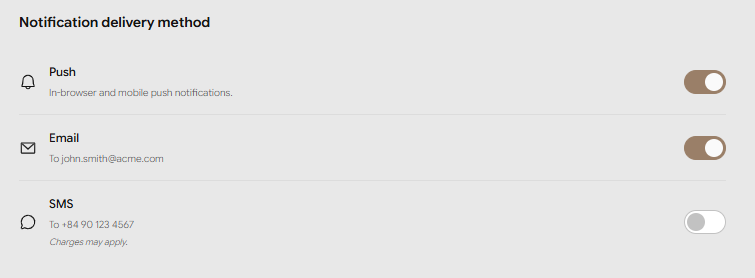
Notification delivery method:
- In-app — on by default.
- Email — off by default; turn it on to also receive notifications by email.
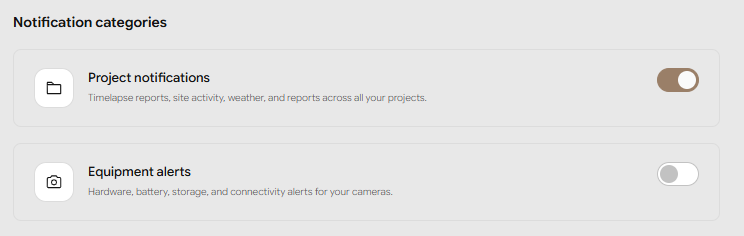
Notification categories:
- Project notifications — activity on your projects.
- Equipment alerts — alerts from your hardware. Expand this category to turn alerts on or off for individual feeds.
- Platform announcements — product, billing, and account messages (always on).